How to Download Digital RC from DigiLocker
Download your digital RC from DigiLocker with the MoRTH issuer flow, required vehicle fields, legal status, and fixes for common fetch errors in India.

Co-Founder & COO
Ambika brings 12 years of project management and technical operations experience. She runs the publishing workflow at vindecode.pro, from research and source checks to review and publication, and keeps our guides accurate and up to date as official rules change.
To download your digital RC from DigiLocker, sign in, choose the Ministry of Road Transport and Highways issuer, select the vehicle RC option, enter the requested vehicle identifiers and tap Get Document. The RC should then appear in Issued Documents, where it is an issuer-sourced electronic record rather than a photo that someone uploaded.
Use the official RC check guide first if you need to check a registration number at a viewing. DigiLocker is for the recorded owner to retrieve their own document, while the VIN decoder helps you compare the chassis string on the vehicle with its paperwork.
What Counts as a Digital RC in DigiLocker
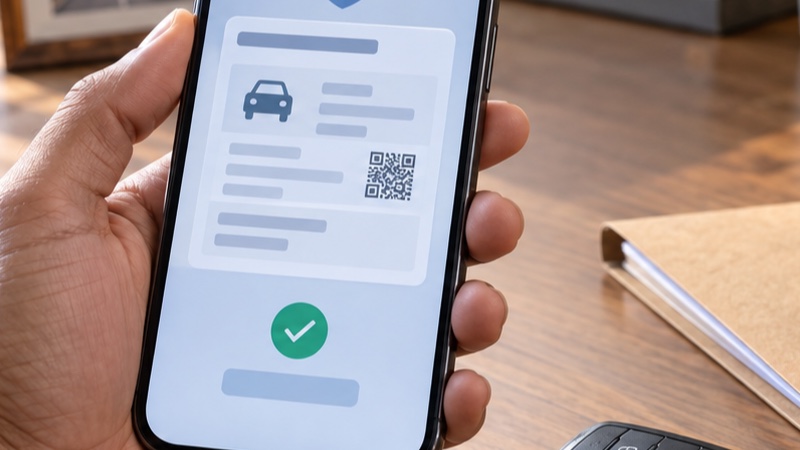
DigiLocker has two places that can look similar on a phone but mean different things. Issued Documents holds a document link created by a government department or other integrated issuer. DigiLocker Drive holds files a user uploaded. For an RC at a traffic stop or a used-vehicle sale, ask to see the issuer-sourced entry under Issued Documents, not just a PDF or image sitting in Drive.
DigiLocker’s official FAQ says the MoRTH connection uses National Register data and saves the fetched URI in Issued Documents. It also says the Aadhaar name must match the RC record. DigiLocker is not a public lookup tool for another person’s plate.
At a dealership, compare an issued entry with the physical chassis stamp, original RC and owner identity. For the registration-number screen, use the step-by-step RC status guide.
Download the RC: Exact DigiLocker Flow
The wording changes slightly between DigiLocker’s website and app, but the official FAQ identifies the route as Get your Digital Vehicle RC and says the finished record is saved in Issued Documents. Follow the labels on the live screen rather than a dated video.
- Sign in to DigiLocker. Use the official app or DigiLocker website. Complete the requested verification, and never give an OTP to a seller or agent.
- Open the document-fetch area. Look for Get your Digital Vehicle RC. Other layouts may put it in Issued Documents under Get More Issued Documents, Search Documents or Browse Documents.
- Choose the issuer and document. Select Ministry of Road Transport and Highways, then the vehicle-registration option, commonly Registration of Vehicles or Vehicle RC.
- Enter the live-form details. Use Registration Number and Chassis Number exactly as requested, plus any current consent or issuer field. Type from the RC or original stamp, not a listing.
- Select Get Document. A successful fetch sends the record to Issued Documents. Open it once and check its registration number, maker/model and visible chassis details.
An illustrative registration number such as MH12AB1234 is only an example of the usual no-space format. It is not a record to search. If the official form accepts a different format, follow its hint text exactly.
Fields You Need and How to Match Them
Have the original RC and the vehicle nearby before you start. That avoids entering an incorrect character and makes the downloaded record useful as a cross-check.
| What the live flow may ask for | Where to get it | Buyer-safe check |
|---|---|---|
| Registration Number | Number plate and RC | Compare each state code, RTO code, letters and digits. Do not guess a nearby plate. |
| Chassis Number | RC and original frame/body stamp | Copy exactly. 0/O, 1/I and 5/S are easy to misread on stamped metal. |
| Account identity / consent | DigiLocker profile | The RC owner should complete this themselves. Their Aadhaar name must match the National Register record. |
| Other issuer-requested detail | The live MoRTH screen | Give only the item the current screen requests. Don’t assume an old “last five characters” instruction still applies. |
On a car, look at the windscreen VIN window, engine bay, door-area label or structural stamp. Two-wheeler locations vary; the bike RC verification guide explains why a steering-head or under-seat stamp needs an in-person check.
Count before entering. Many newer vehicles use a 17-character VIN, but Indian maker formats can differ. MBLAA12BC3D456789 is illustrative only, not a real identifier.
Issued RC vs an Uploaded RC Scan
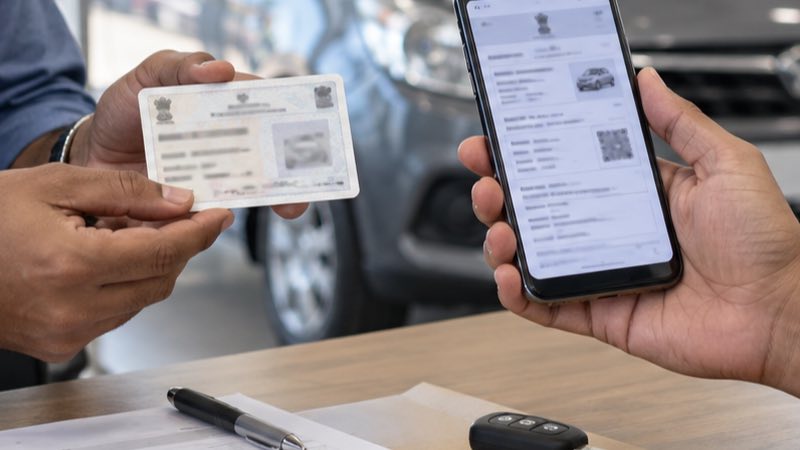
Ask one simple question: “Is this under Issued Documents?” A fetched RC can be opened from that section because the issuer created the document reference. A scan in Drive may still be the owner’s real RC, but DigiLocker has not established it as an issuer-provided record.
This is also why a buyer should not ask a seller to WhatsApp a DigiLocker PDF as the only proof. Meet the recorded owner, see the RC in their own account, and independently run the plate through the VAHAN/Parivahan RC walkthrough. Compare maker, model, fuel, registration date, registering authority and the visible chassis suffix. A clean screen result is a useful filter, not a completed ownership transfer.
If the owner has a legitimate older paper RC but DigiLocker cannot retrieve it, do not treat the failure as proof of fraud. Ask them to resolve the record with the registering authority and use original documents for the immediate inspection. The RC book and smart-card comparison explains why format alone does not tell you whether an endorsement or a transfer is current.
When an Electronic RC Is Accepted
MoRTH’s 8 August 2018 advisory says electronic records available on DigiLocker or mParivahan are legally recognised at par with original documents under the Information Technology Act, 2000. Rule 139 was amended by G.S.R. 1081(E) to permit production in physical or electronic form.
Show the live issued RC in DigiLocker or mParivahan when asked. A gallery photo, unverified screenshot or uploaded file does not have the same issuer trail. Electronic acceptance also does not cure an expired registration, loan entry, insurance problem or chassis mismatch. For a loan, obtain the financier’s NOC and complete Form 35; the RC check by chassis-number guide explains the limit of a chassis comparison.
No Record Found and Other Errors
Start with the message, not a random retry. DigiLocker’s FAQ specifically says it cannot fetch an RC that is unavailable in the National Register and advises users to check the details entered when they do not match issuer data.
| What you see | Likely cause | Best next step |
|---|---|---|
| No record available in issuer database | RC record is not available in the National Register. | Check the characters against originals, then use the official VAHAN application-status service or contact the registering authority. |
| Details did not match issuer data | A character, spacing or requested identifier is wrong. | Re-enter from the physical stamp and RC. Avoid O/0, I/1 and S/5 substitutions. |
| Name mismatch or a fixed Aadhaar-name field | DigiLocker profile name does not match the National Register RC record. | The recorded owner should check the RC data and take a correction request to the appropriate RTO if the record itself is wrong. |
| RC is in a relative’s name | The account holder is not the recorded owner. | Let the relative fetch it in their own account. Do not try to use their OTP or Aadhaar details. |
| New transfer or correction is pending | The underlying RC record has not yet changed. | Keep the acknowledgement and follow official status. The old record does not prove a completed transfer. |
Never pay a “DigiLocker activation” fee to a caller. The issued-RC flow is an official document-retrieval feature. If someone says they can bypass name matching or fetch any RC for cash, stop sharing details.
Using DigiLocker During a Used-Vehicle Deal
Use DigiLocker as one check. Before you travel, run the plate on the official RC check page. At the meeting, ask the recorded owner to open their issued RC, then inspect the chassis stamp in daylight.
If hypothecation remains, obtain lender clearance. If the person with the keys is not the recorded owner, include the registered owner in the transfer. A digital RC proves neither a sale nor a completed transfer.
Frequently asked questions
Is a DigiLocker RC accepted during a traffic check?
MoRTH’s 8 August 2018 advisory states that electronic RC records available through DigiLocker or mParivahan are legally recognised at par with originals. Rule 139 of the CMVR also permits production of required documents in physical or electronic form.
Where does a fetched RC appear in DigiLocker?
A successfully fetched MoRTH RC appears in Issued Documents. That section contains documents issued by an integrated authority; it is different from DigiLocker Drive, where a user can upload their own files.
What information is required to fetch a DigiLocker vehicle RC?
Start with the registration number and chassis number exactly as requested on the live MoRTH form. The official FAQ confirms that DigiLocker fetches the RC from the MoRTH National Register and checks that the account Aadhaar name matches the RC record.
Why does DigiLocker say no record is available in the issuer database?
DigiLocker says it cannot fetch an RC that is not available in the National Register. Check each entered character, then use the official RC application-status service or contact the registering authority for a record issue.
Can a buyer fetch the seller’s RC into their own DigiLocker account?
No. DigiLocker’s official FAQ says the Aadhaar name in the account must match the name in the National Register RC record, so a buyer should ask the recorded owner to show their issued RC instead.
Sources & official references
- DigiLocker FAQ: MoRTH digital vehicle RC and DL integrationwb.digilocker.gov.in
Official FAQ on Issued Documents, MoRTH National Register integration, name matching and record-not-found errors.
- MoRTH advisory on DigiLocker and mParivahan documents, 8 August 2018parivahan.gov.in
Official advisory stating the recognition of electronic records available on DigiLocker or mParivahan.
- MoRTH notification G.S.R. 1081(E), 2 November 2018morth.nic.in
Gazette notification amending Rule 139 to include production in physical or electronic form.
- Parivahan Sewa: application-status servicevahan.parivahan.gov.in
Official VAHAN application-status route referenced by DigiLocker for RC record availability.